If you'd like to tag orders based on whether the name provided as part of the billing and shipping details either matches or not. This criteria will allow you to analyze the order’s Shipping/Billing name and will identify if the customer is the one responsible for the order.
How to use the criteria:
To create a workflow using this criteria, click on the Create New Workflow button from the main Workflows view:
Define the trigger to determine at which point you would like the workflow to run, we recommend selecting the trigger when orders are created.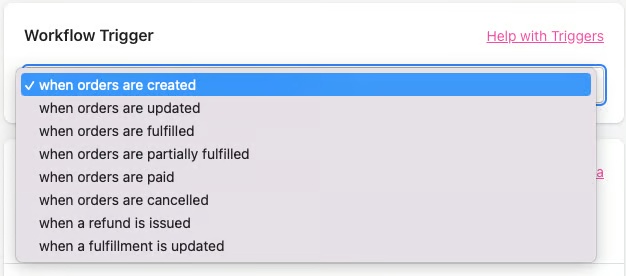
Click the Add criteria to my workflow button: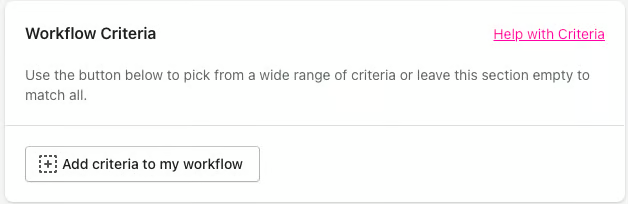
The Shipping/Billing name does not match criteria can be found within the Customers category n the Select criteria pop-up window. 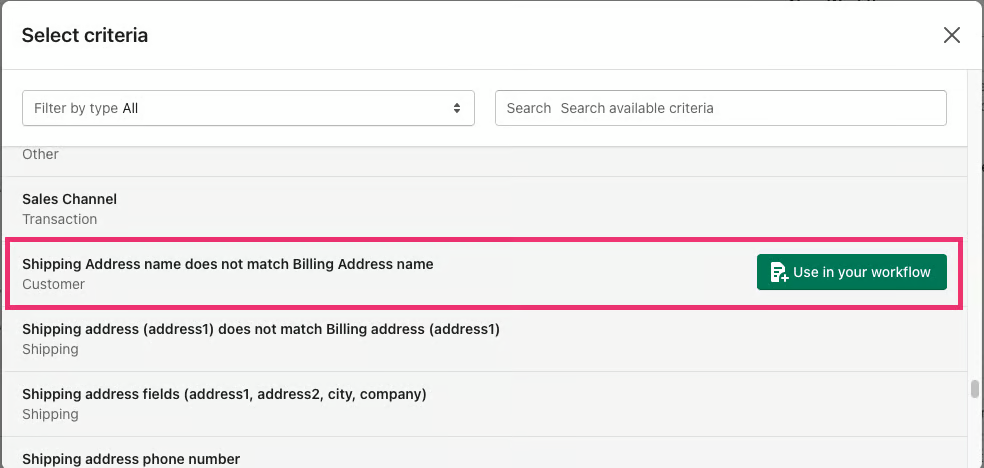
Click the Use in your workflow button on the right to select this criteria.
You will then be presented with the following screen: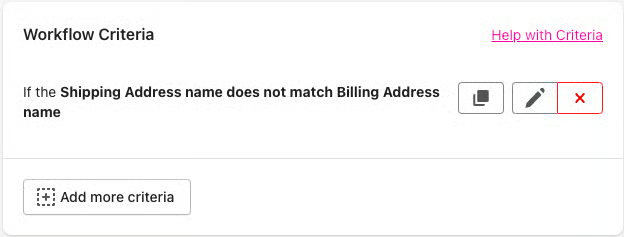
There’s no further option for the selected criteria.
Choose the name of the tag you'd like to see on all orders that match this workflow and enter it into the "Add tags" when the workflow matches the section.
In this example, we have used the tag Customer Identifier: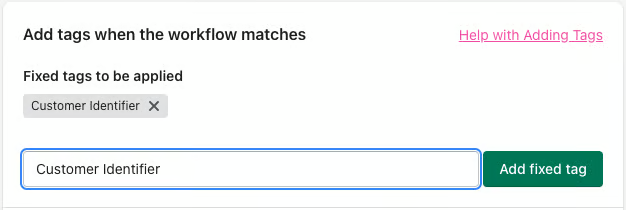
Saving and naming your workflow
It is mandatory to name your workflow to save or edit it. Otherwise, you won't be able to save the changes or even test them. Then, check the summary of your workflow, and if happy, either Test your Workflow against an existing order or hit Save Workflow: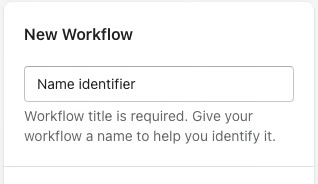
Was this article helpful?
That’s Great!
Thank you for your feedback
Sorry! We couldn't be helpful
Thank you for your feedback
Feedback sent
We appreciate your effort and will try to fix the article