Show the product ratings your review app collects, credit affiliates with LeadDyno, and connect AI assistants such as Claude, ChatGPT and Cursor.
Settings > Integrations lists what CartHook connects to. You can disconnect any of them at any time.
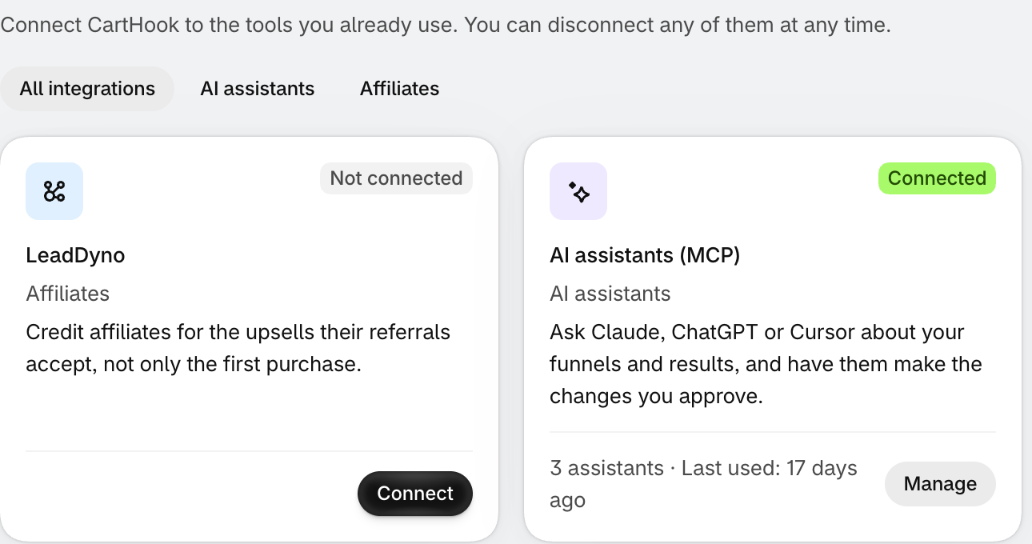
LeadDyno
Credit affiliates for the upsells their referrals accept, not only the first purchase.
1. Get your key
In LeadDyno, copy your Private API key from Account Profile.
2. Connect
Open LeadDyno, paste the key under Your key and select Connect. CartHook checks it with LeadDyno.
3. Test it
Select Send a test.
What CartHook sends - for orders that came through an affiliate link:
- An upsell is accepted - the purchase in LeadDyno grows by the upsell's amount, so the affiliate is credited for it.
- An upsell is removed - its amount comes off the purchase again.
How it's going shows when CartHook last sent, and failed sends in the last 30 days. A failed send is tried again five times over 20 minutes.
Disconnect stops sending and forgets your key. What was already sent stays in LeadDyno.
AI assistants (MCP)
Ask Claude, ChatGPT or Cursor about your funnels and results, and have them make the changes you approve.
Claude.ai and ChatGPT:
- Copy Your store's address from the page.
- In Claude, open Settings > Connectors > Add custom connector; in ChatGPT, Settings > Connectors > Create. Paste the address.
- Select Get a pairing code and enter it when asked. A code works once, for 10 minutes.
Claude Code, Claude Desktop and Cursor: select Make a token and follow the set-up shown for your tool. Copy the token straight away - CartHook can't show it again. Making a new token stops the old one.
What they can do: read your funnels, offers and settings; read your results over any dates; look up products and orders; and build and change funnels - create funnels and offers, set audiences and blocks, publish, and switch funnels on or off. Every change is shown to you first and made only once you approve it.
- Each assistant can make 60 requests a minute; results (analytics) are limited to 10 a minute for the store.
- Every change an assistant makes is in your activity log, as yours would be.
- Remove one assistant under Connected assistants, or Disconnect to stop them all.
Product reviews
Show the star rating your review app already collects on the products you offer.
There is nothing to paste and no key to find: Shopify has a standard place for a product's rating, and review apps write it there. Open Product reviews and select Connect. CartHook reads the whole catalogue straight away, and after that reads a product's rating whenever that product changes.
It works with any app that writes Shopify's review metafields - Judge.me, Loox, Okendo, Stamped and Yotpo all do - and reads Loox's, Stamped's and Yotpo's own fields as well, for the shops where the standard ones are switched off.
Ratings says how many of your products carry a rating. Check what it finds looks at 25 of your products and tells you what it read, or what to ask your review app for.
Where the rating comes from
| Setting | Default | What it does |
|---|---|---|
| Review app | Any — whichever has written one | Which app's figure to read. Pin one if your products carry ratings from more than one app and you want a particular one. |
| Fewest reviews before stars show | 3 | A rating from one or two reviews says little. Below this, a product's stars are left off; its rating is still read, so lowering the number shows them at once. |
A rating is always shown out of five, whatever your app counts in: an app scoring out of ten gives 4.6 stars, not 9.2.
Where stars appear
Reading the ratings doesn't show them. Each offer decides, so switch them on where you want them:
- Checkout upsells - Reviews under Fine tuning > Name and price. See Checkout upsell.
- Post-purchase offers - add the Reviews part to the offer's card. See Offer editor.
- Thank-you page upsells - Reviews under Layout and display. See Thank-you page upsell.
A product with no rating, or with fewer reviews than you asked for, shows nothing at all - never an empty row of grey stars.
Disconnect stops stars showing on your offers at once. The ratings already read stay on your products, so connecting again picks up where it left off.
Note:
Product reviews is on every plan. LeadDyno and AI assistants are plan features; if your plan stops including one, you can still disconnect it.
Was this article helpful?
That’s Great!
Thank you for your feedback
Sorry! We couldn't be helpful
Thank you for your feedback
Feedback sent
We appreciate your effort and will try to fix the article