Send all traffic from one of your subdomains to a page you choose, for example blog.yourstore.com → yourstore.com/blogs/news. It's useful for regional sites, old brand sites or campaign landing pages.
ℹ️ Plan: Available on Pro+.
Why you need this
By default, Shopify sends every subdomain connected to your store to the same path on your primary domain. For example, shop.yourstore.com/collections/sale goes to yourstore.com/collections/sale. A subdomain redirect lets you send the subdomain somewhere specific instead.
Before you start
- The subdomain must already be connected to your Shopify store (Shopify admin → Settings → Domains).
Steps
- In the app, go to Redirects → Subdomain Redirects.
- Click Create Subdomain Redirect.
- In Subdomain, choose the subdomain you want to redirect.
- In Destination, enter where visitors should land.
- Click Create Redirect.
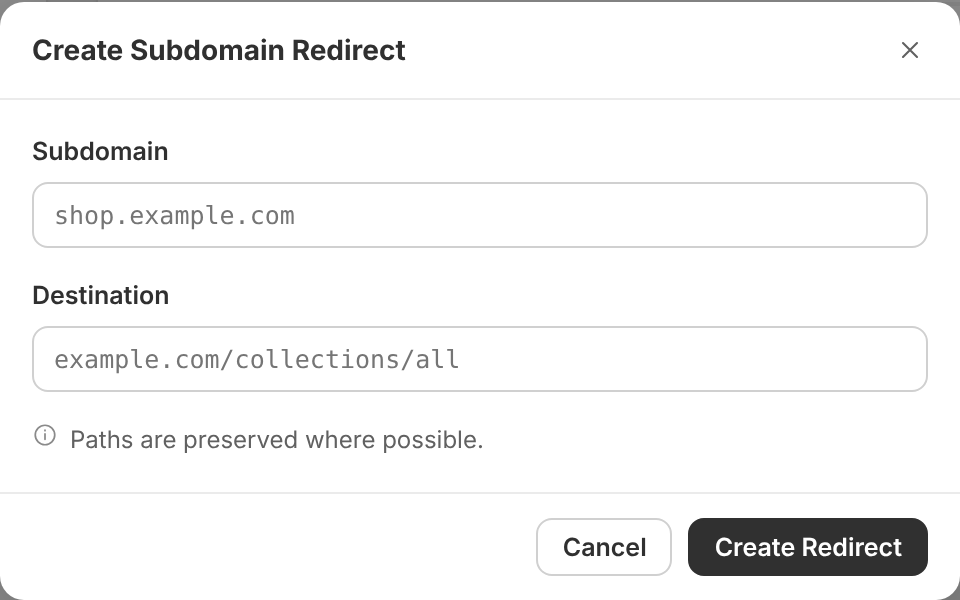
The redirect appears in Subdomain Redirects, where you can see its hits, edit the destination or remove it.
Check that it works
Open the subdomain in a private browser window. You should land on your destination.
Good to know
- Paths are kept where possible.
- You can't redirect a subdomain to a different domain that isn't connected to your store. See the Use Case Guide for what's possible.
Still stuck? Contact our support team and we'll help you. You can also book a call with our Product Manager.
Was this article helpful?
That’s Great!
Thank you for your feedback
Sorry! We couldn't be helpful
Thank you for your feedback
Feedback sent
We appreciate your effort and will try to fix the article