Quick Navigation
To find the page where you can adjust settings in the sections we presented below, follow these steps.
1. From the Shopify Admin, select Apps.
2. Select Store Locator.
3. Select Settings.
3. Select Display Settings.
4. Scroll down until you get to Information Formatting section.
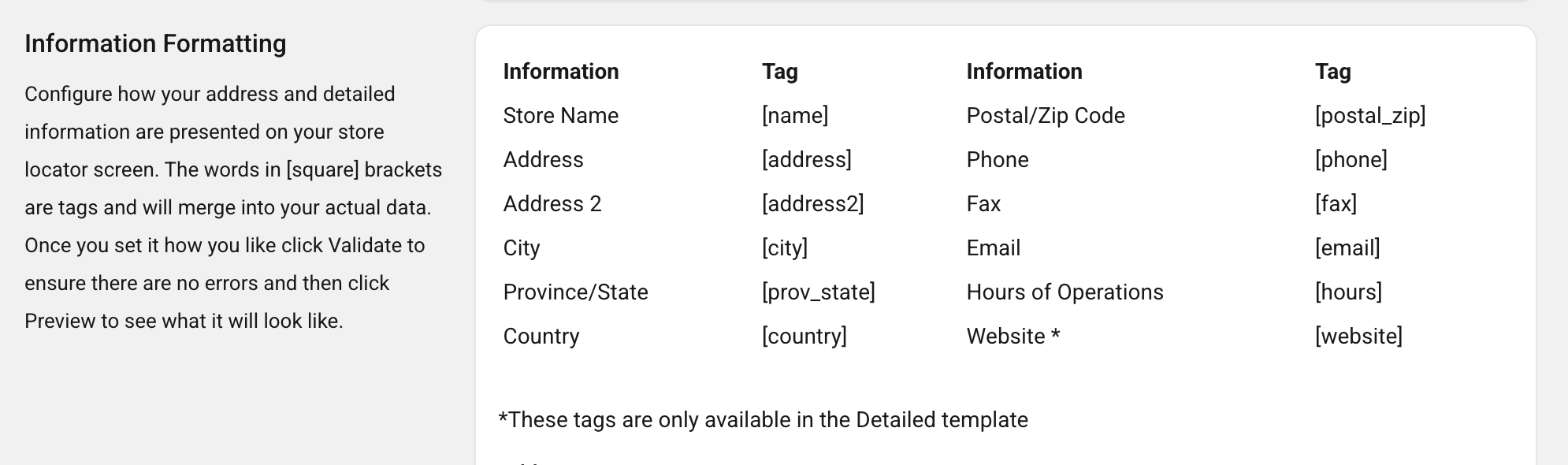
Important Note
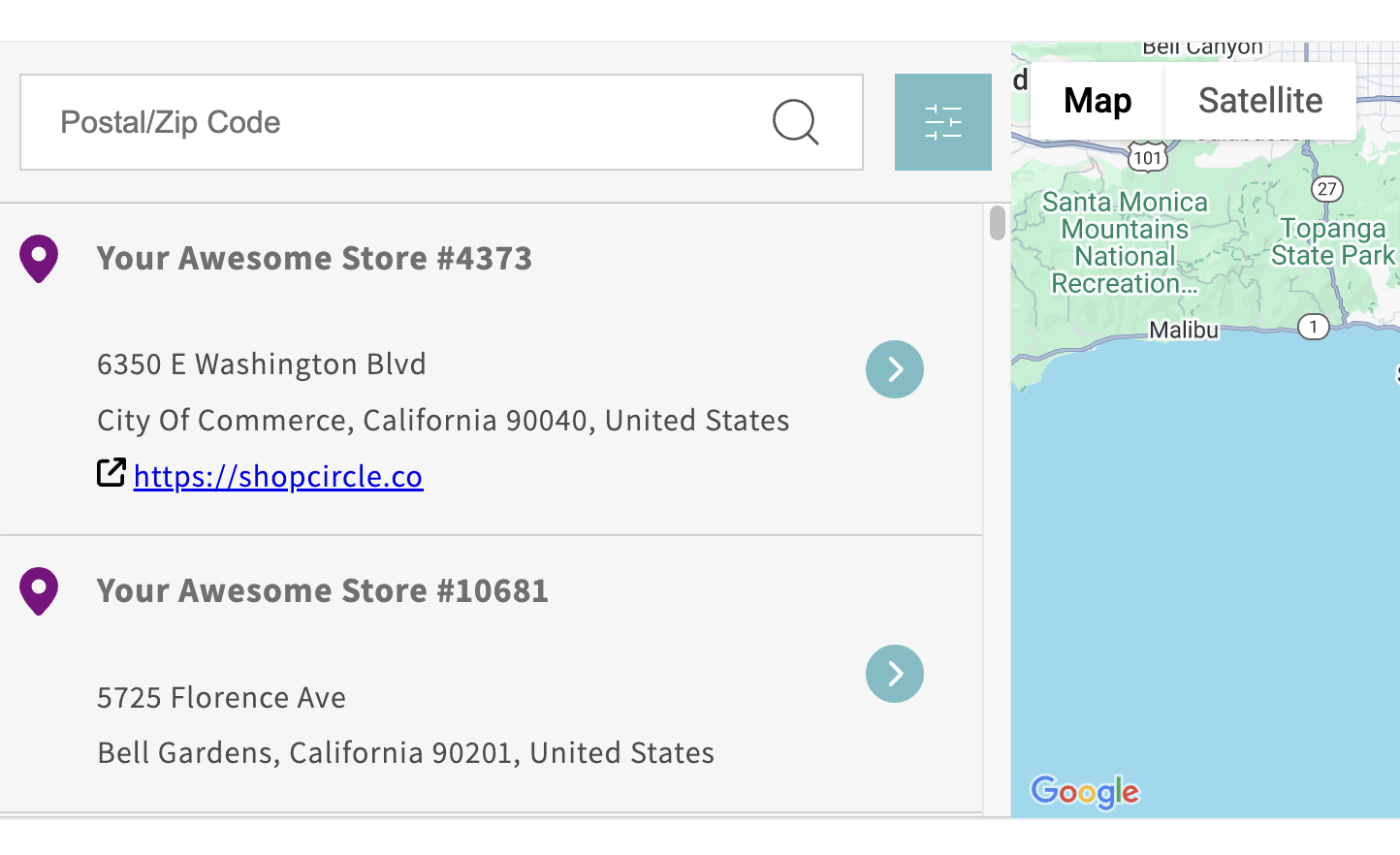
Website can be added to the location list on your Proxy Page (only!) on the Display Settings page. Check out the screenshot below to see what your customers will observe if you chose to set it up.
Step 1: Information Formatting Validation
The Address section is used to adjust what is seen on the location list.
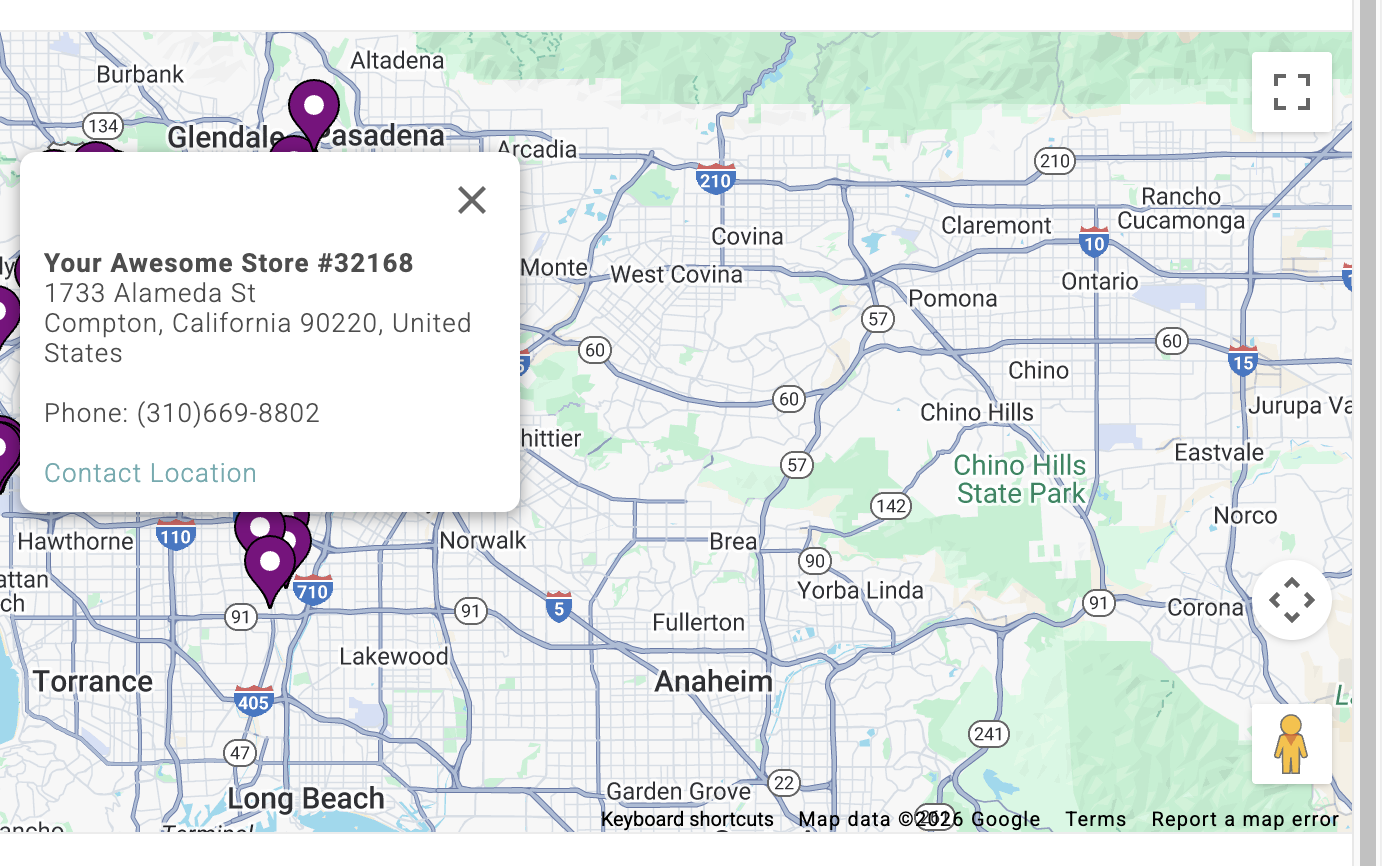
The Detailed section determines what information is showed on the cards once your customer click on a map pin.
The following steps are the same for both adjustments. For the purpose of this exercise, we will update the Detailed information.
1. Adjust the information format as you see fit.
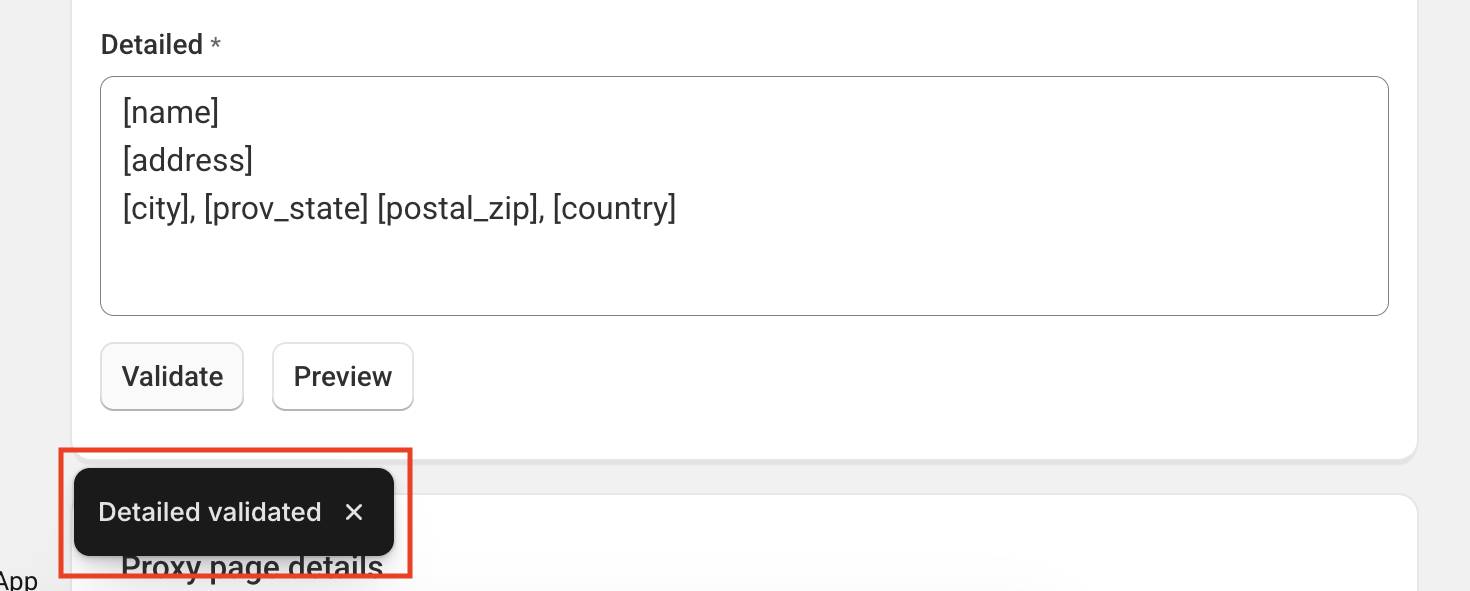
2. Select Validate.
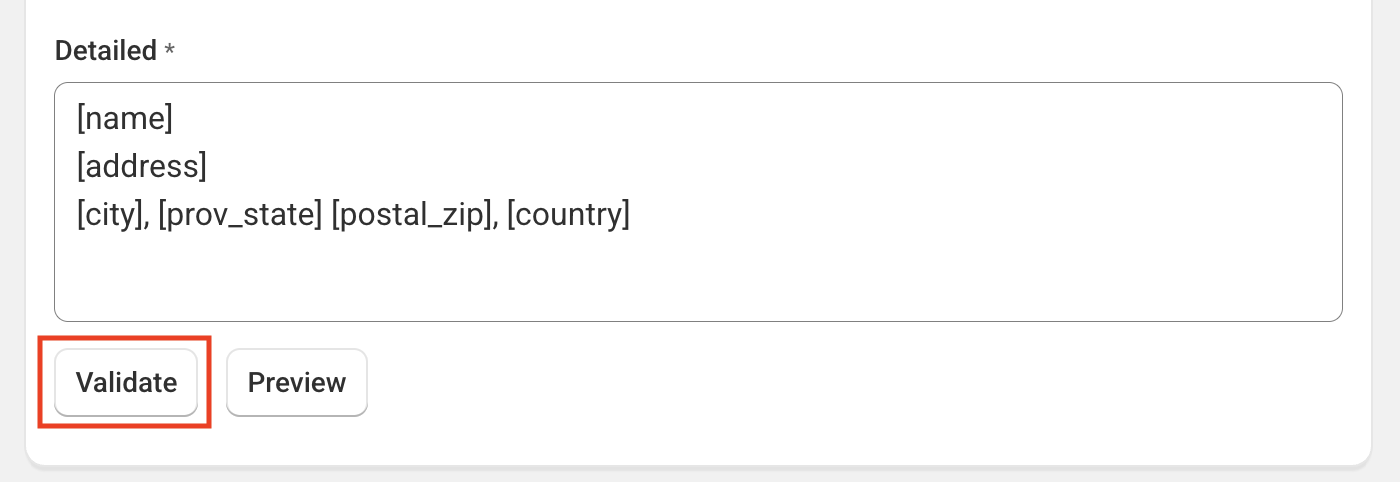
3. You will get the notification at the bottom of you screen confirming your wanted information is properly formatted.
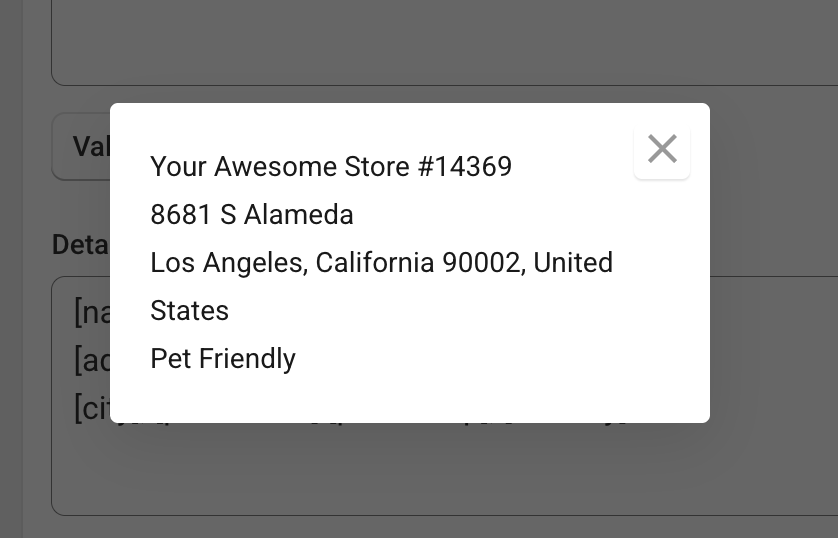
4. Select Preview. (optional)
5.Use it to confirm if you like the information formatting. (optional)
6. Save changes.
Important Note
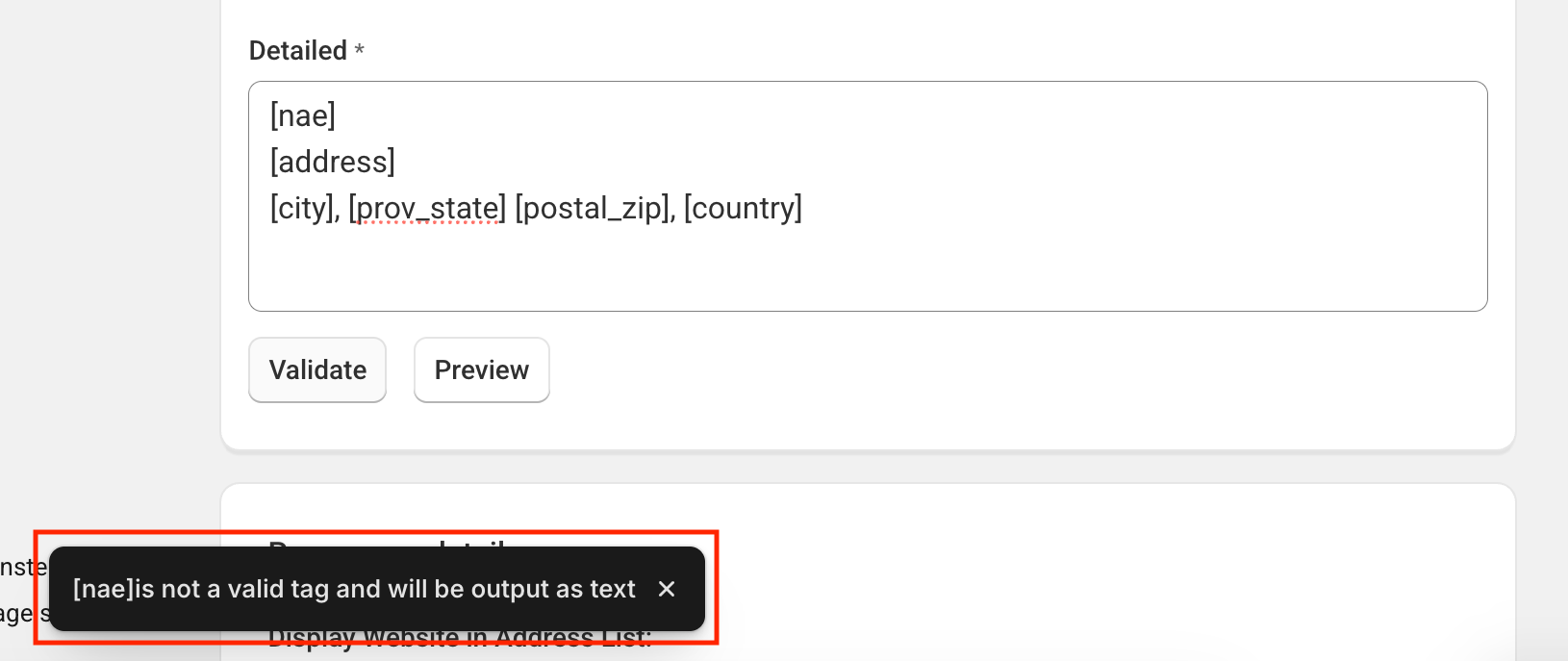
If validation is not successful (like a spelling error), the pop-up will notify you.
Adding Other Text To Cards
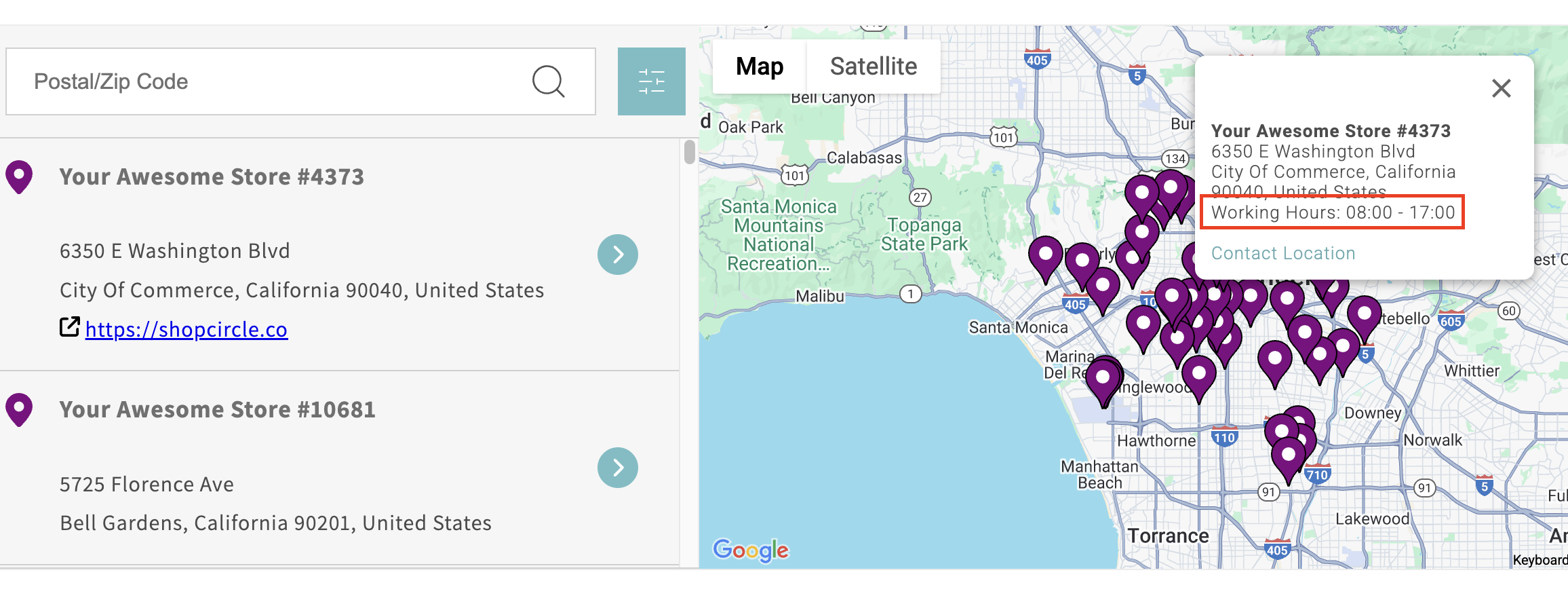
Let's say you want to add working hours on your cards. Not only should you show the information that you set up as prescribed in Add & Edit Store Locations, but there are additional steps we recommend:
1. Add the text you want to be presented before working hours and [hours] in brackets.
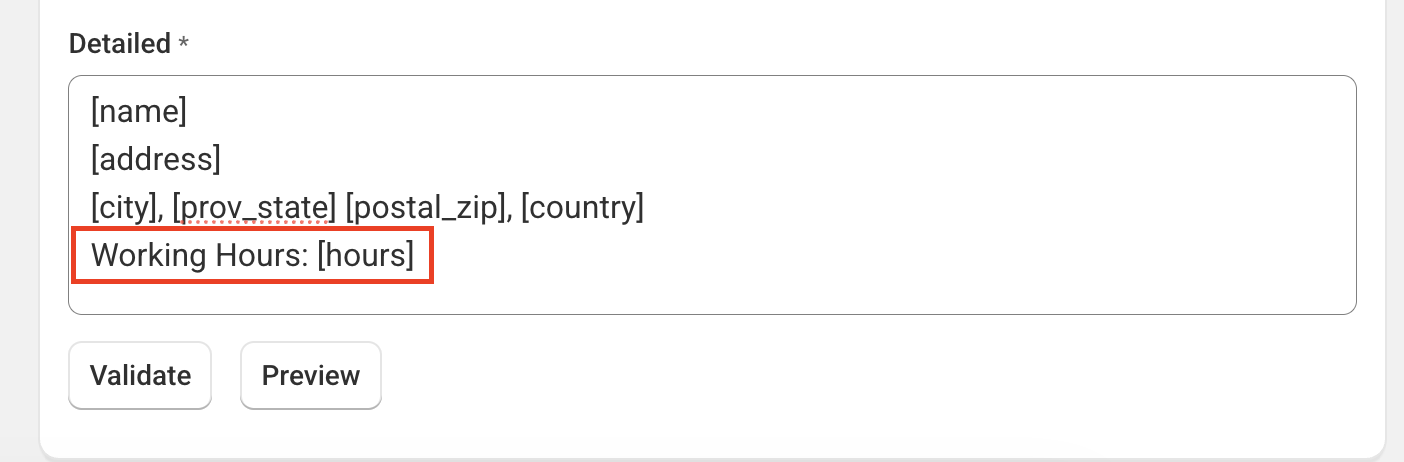
2. Perform all steps from the previous section.
3. Checkout your map and it should be looking like this.
Contact Us
- Reach out to our Support Staff, or use our live chat if you have any obstacles.
- Schedule a call with an expert to help you set up or customize the app.
Was this article helpful?
That’s Great!
Thank you for your feedback
Sorry! We couldn't be helpful
Thank you for your feedback
Feedback sent
We appreciate your effort and will try to fix the article