1. From the Shopify admin, select Apps.
2. Select Store Locator.
3. Select Settings.
4. Select Search Settings.
5. Select services you would like to activate.
6. Save changes.
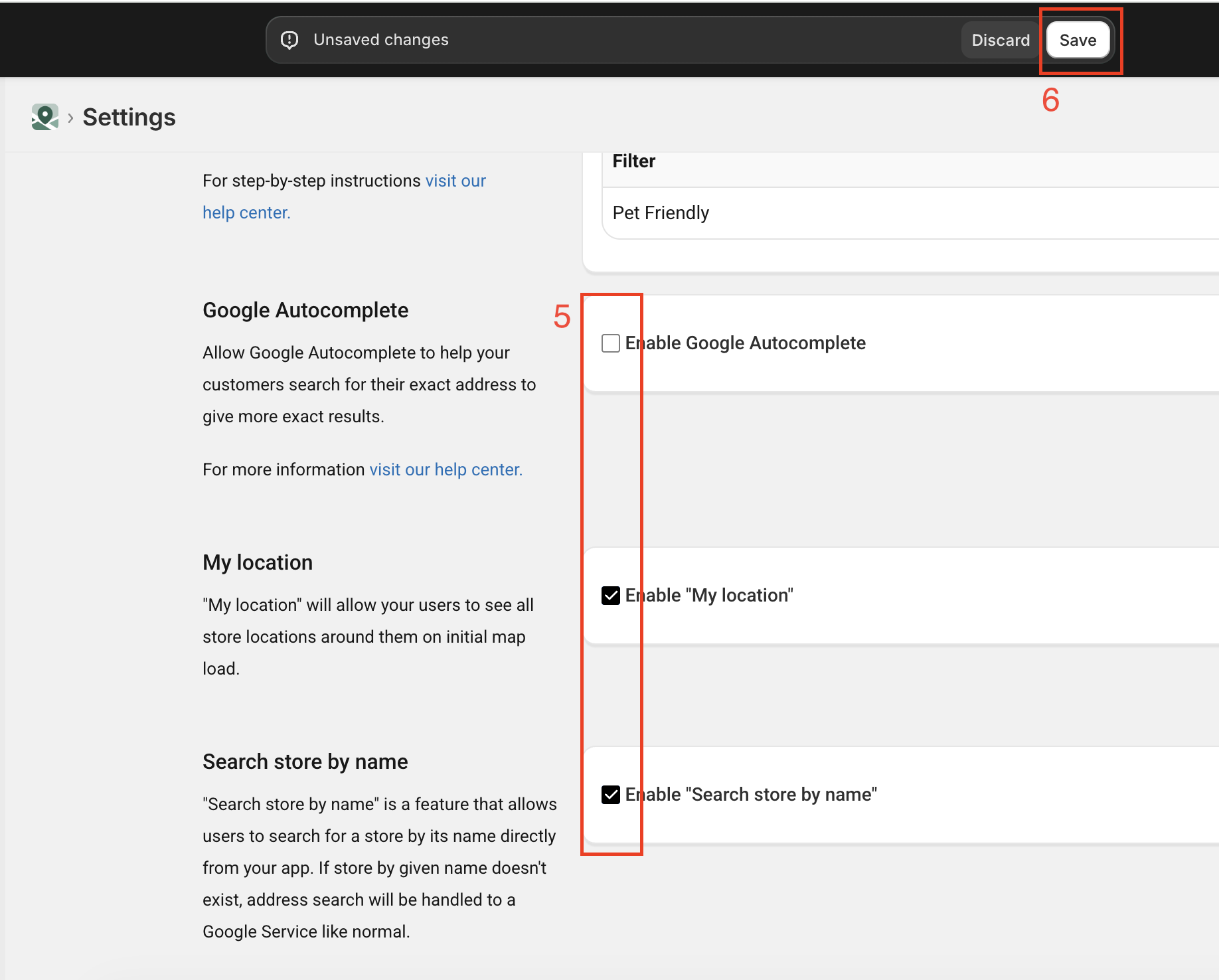
Step 1: Google Autocomplete
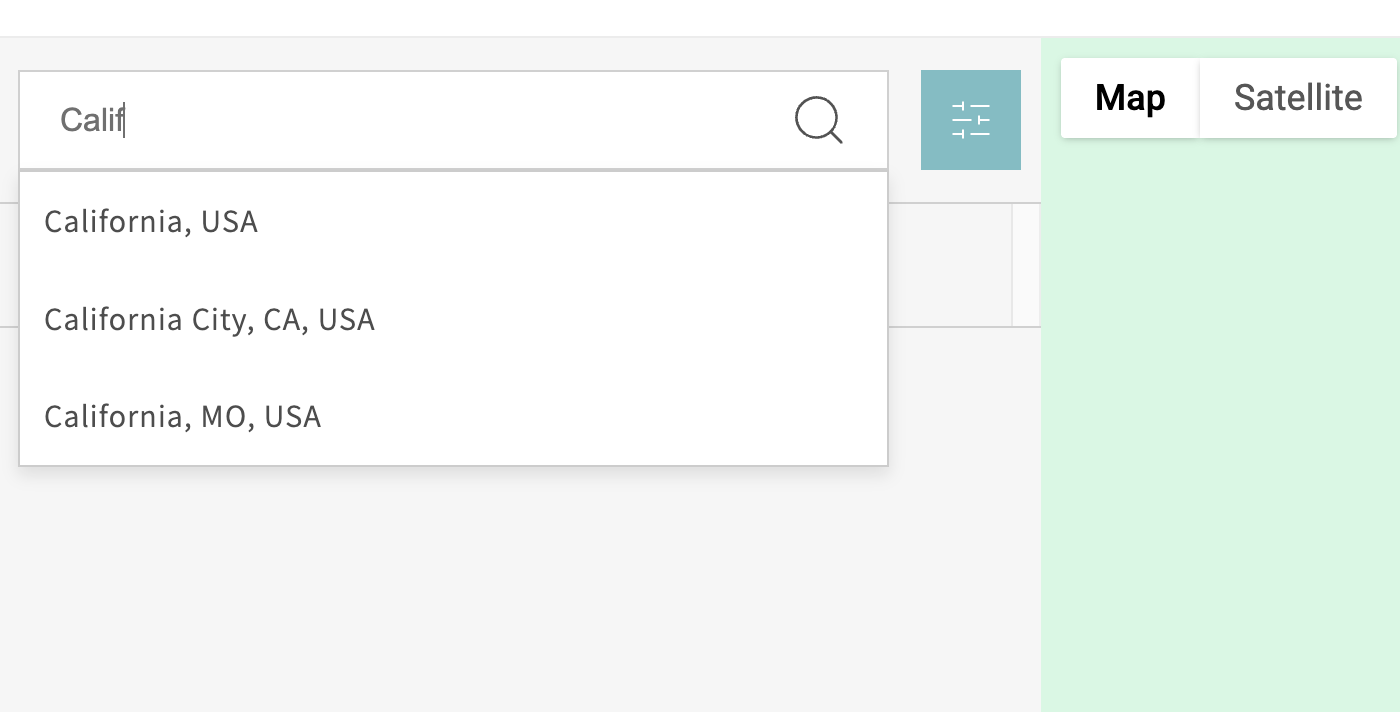
Allow Google Autocomplete to help your customers search for their exact address to give more exact results. Check out the screenshot below to see what your customers can expect while searching.
Step 2: My Location
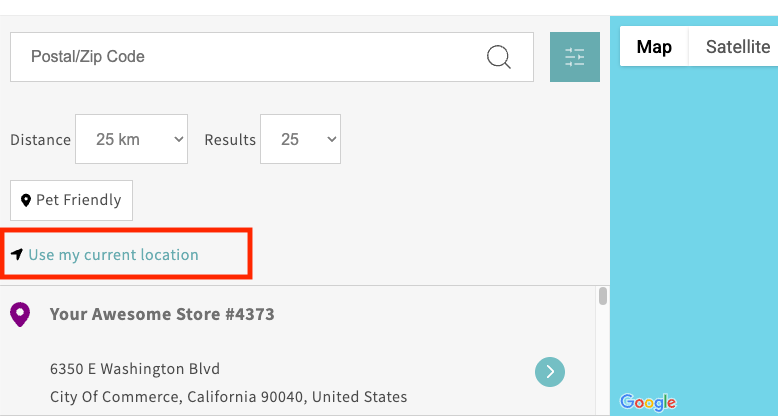
My Location" will allow your users to position themselves on the Proxy Page and App Blocks maps by using the "find my location" button. The position is determined by their geo location.
Important Note
You will not have the "find my location" button on the map for your customers if you select the Legacy Layout. It will be automatically triggered and it will position them on the map based on their geo location. "My location" will allow your users to see all store locations around them on initial map load.
Step 3: Search Store By Name
"Search store by name" is a feature that allows users to search for a store by its name directly from your app.
Important Note
If store by given name doesn't exist, address search will be handled to a Google Service like any other search. Usually, it will show "No Stores Found" as seen on this screenshot.
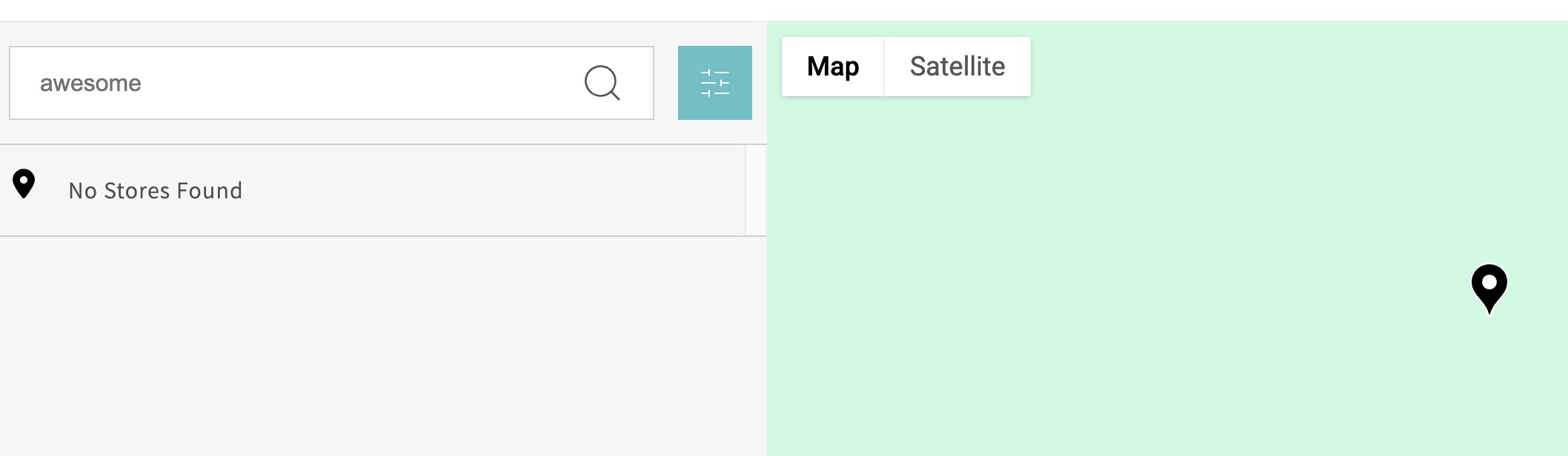
Store Name search will not provide suggestions, even if Google Autocomplete is turned on.
Contact Us
- Reach out to our Support Staff, or use our live chat if you have any obstacles.
- Schedule a call with an expert to help you set up or customize the app.
Was this article helpful?
That’s Great!
Thank you for your feedback
Sorry! We couldn't be helpful
Thank you for your feedback
Feedback sent
We appreciate your effort and will try to fix the article