Quick Navigation
Store Locator can be customized to reflect the same branding and color scheme as your store. This articles follows the Display Settings page section order, so you can follow it along as you set up your map.
To find the page where you can adjust settings in the sections we presented below, follow these steps.
1. From the Shopify Admin, select Apps.
2. Select Store Locator.
3. Select Settings.
3. Select Display Settings.
Bare in mind that more complex setups from this page will be handled in separate articles:
Important Note
Making advanced styling changes within Store Locator requires knowledge of CSS. If you are not comfortable with completing this on your store, schedule a call with an expert to help you out. Some of the current limitations below can by overcome, so do not hesitate to reach out to us!
Page Layout
Choose how the map appears on the proxy page. Once selected please make sure you save changes.
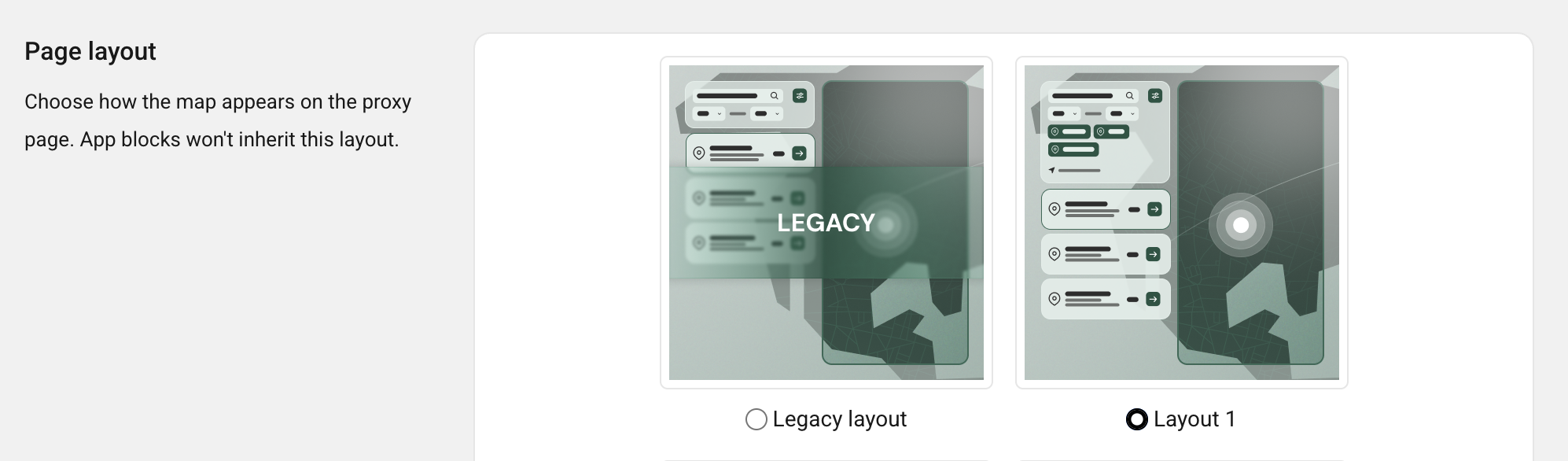
Important Note
App Blocks won't inherit this layout. Make sure you adjust it there.
Recommended Action
As described in this and Search Settings article, in some aspects Legacy behaves differently than other layouts..
For example, if you enable My Location, you will not have the "find my location" button on the map for your customers. It will be automatically triggered and it will position them on the map based on their geo location.
Make sure you explore those differences if you are eager to use it.
Search Settings
Customize the look and wording of search related settings. After you make a change you can check it on your Proxy Page.
Search Default Text: Changes the text presented in the map search box after map loads.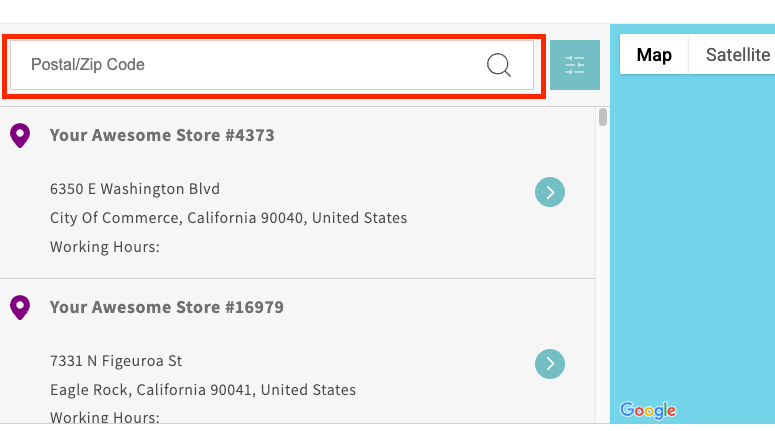
Use My Location Text: Changes the text presenting the button used to position your customers on the map (My Location).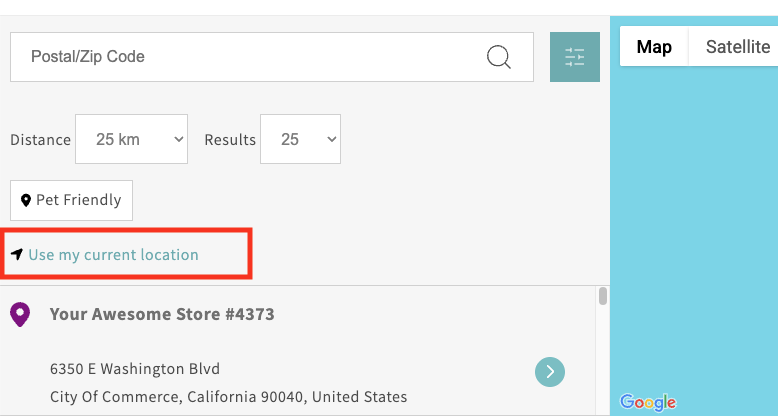
Load Locations With Map: If selected, it will assure all map pins are visible on your map after the initial load.
Important Note
- If you turn on Display nearest #stores in the Result Settings section, the map will show closest map pins to your customers despite of you turning off Load Locations With Map. In this scenario your map didn't find any locations, which triggers the Display nearest #stores rule.
- If you are using Legacy Layout, and My Location in the Search Settings is turned on, the map will show all locations including geo locations of your customer despite of you turning off Load Locations With Map.
- These settings are applied both to your Proxy Page and App Blocks you add. If you change them on App Blocks, they will reflect in Display Settings as well
Filter Settings
Ensure users have a seamless search experience by customizing the wording related to the map search filter. This section only handles translations of the text, however, let's use the opportunity to explain how your customers use them.
Max Distance: Limits the radius in which map pins will be showed once your customers tries to find something through the search box.
No Limit: Your customer expand the search and enable loading of all map pins when trying to find something through the search box.
Results: Limits the number of results your customers can get when they try to find your physical locations.
You Are Here: Small pop-up showed once your customers click on the map pin indicating their location.

Important Note
- My Location, on the Search Settings page, needs to be turned on if you want your customers to be able to see the pin indicating their location.
- These settings will be applied to both your Proxy Page and App Block map.
- These settings are applied both to your Proxy Page and App Blocks you add. If you change them on App Blocks, they will reflect in Display Settings as well.
Result Settings
Fine-tune the way you present search results to your customers. Whether it's displaying nearby stores or crafting the perfect alert when no stores are found, these settings allow you to create a seamless and engaging experience.
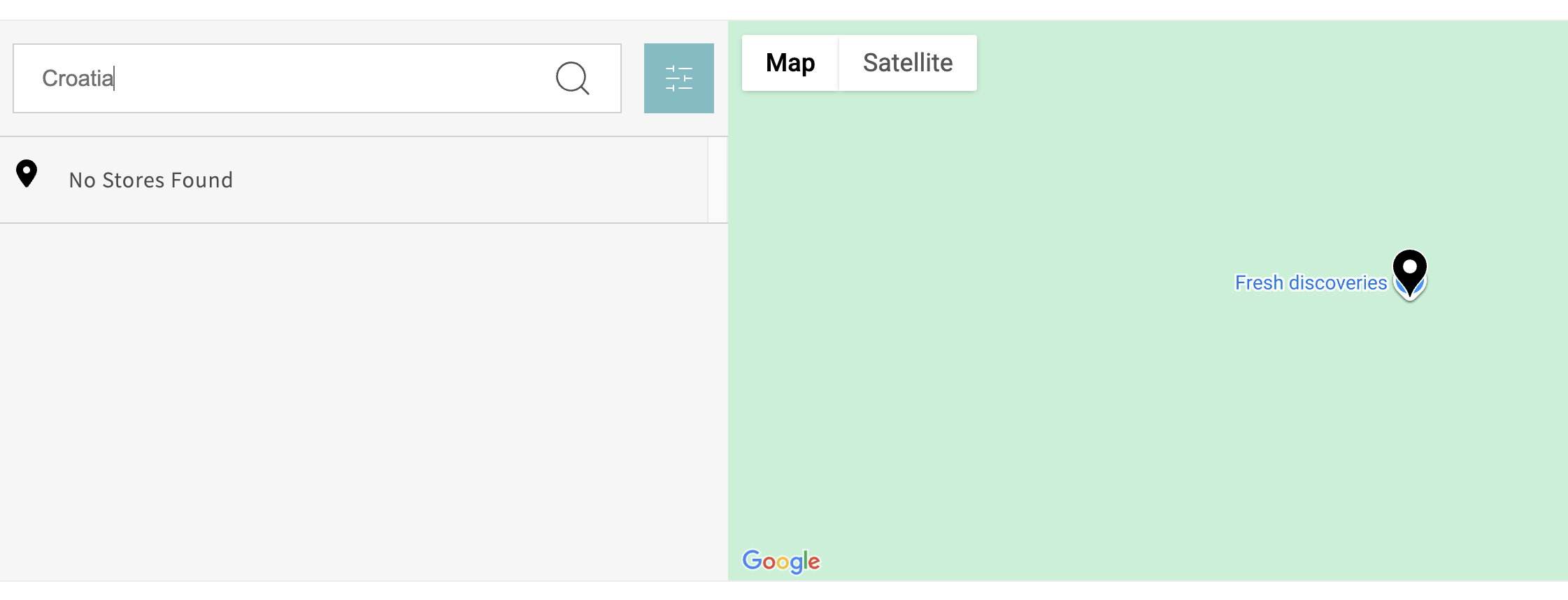
No Stores Found Text: Changes the text presented in the map search box if no locations are found. In this example, we've searched for Croatia and the search found nothing, since the locations are all situated in California.
Important Note
This message should be showing when you turn off Display Nearest # Stores article and Load Locations With Map . If you want this kind of behavior on the Legacy Layout [link], please turn off My Location.
Display Nearest # Stores: If no locations are found during your customers' search, you can make sure closest map pins are still visible. We've searched for Croatia again and the search showed five closest locations, as we've set "Nearest # Stores to 5 (see below).
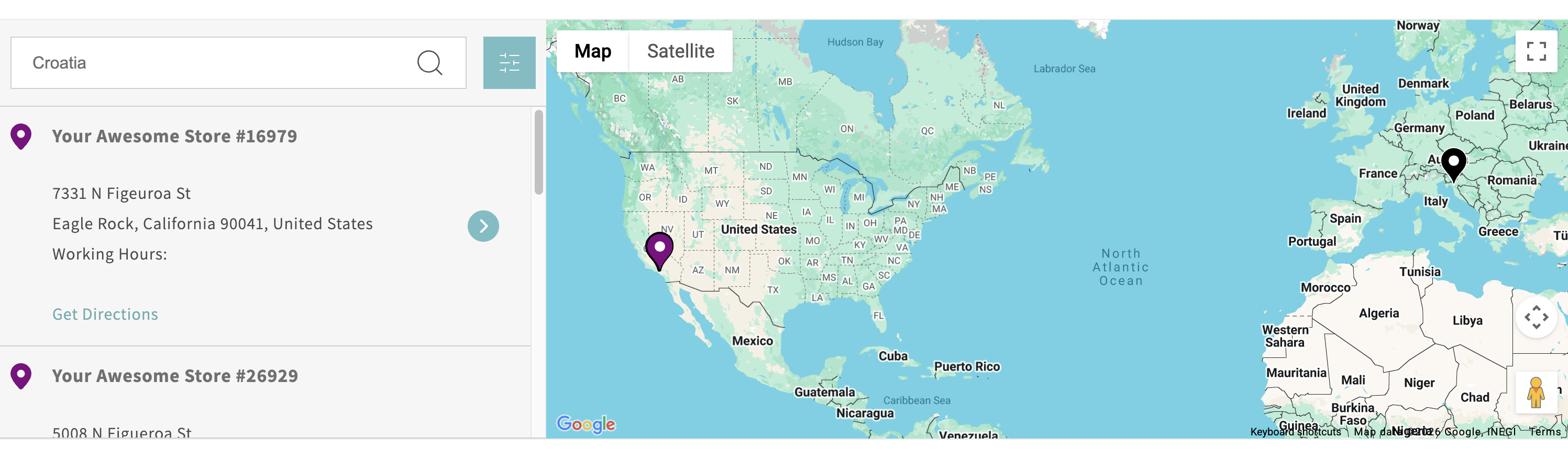
Nearest # Stores: If no locations are found during your customers' search, you can determine how many closest map pins will be visible.
Important Note
These settings are applied both to your Proxy Page and App Blocks you add.
Get Direction Settings
These settings allow you to fine-tune how users receive directions to your stores.
Get Directions Text: Changes the text presenting the button used to get written directions on how to find a location.
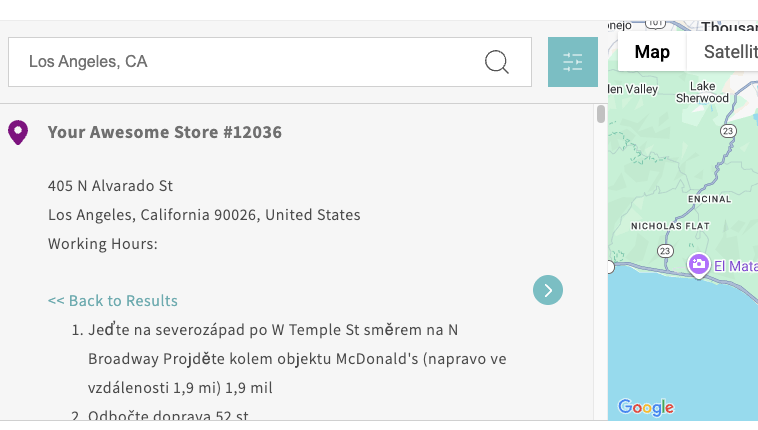
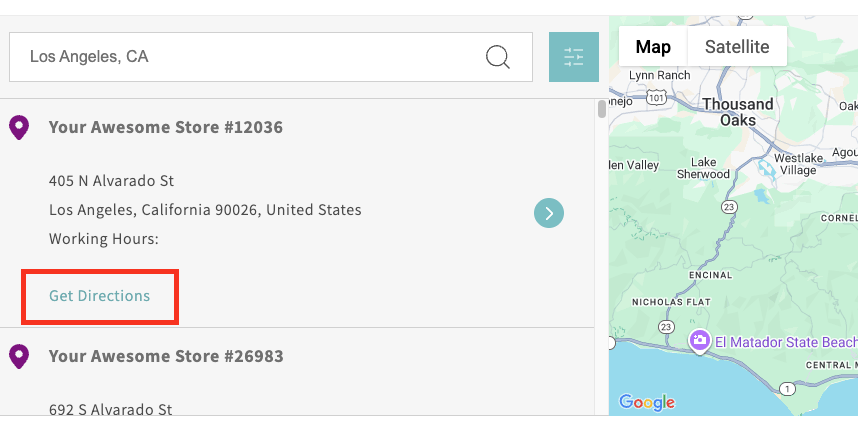 Direction Language: Changes the language of written directions. We've selected Chech for the purpose of this example.
Important Note
- Get Direction only works once your customer has completed a search by inputing information in the map search box (and if the search found any locations).
- Directions are presented only textually.
- These settings are applied both to your Proxy Page and App Blocks you add. If you change them on App Blocks, they will reflect in Display Settings as well.
Map Settings
Here you can configure your map's appearance, including setting the map height and choosing between light, dark or system matching color scheme to match your users preferences.
Map Height: Determine the hight of your Proxy Page map.
Map Color Scheme: This setting will be applied to both your Proxy Page and App Blocks on your store, except when using the Legacy Layout in your App Block.
Important Note
Map height for App Blocks is currently only adjustable through customizations. If you are not comfortable with completing this on your store, schedule a call with an expert to help you out.
Set Proxy Page Style
If you are using a proxy page instead of an App Block, you may make some page style customization. These settings should be pretty self-indicative, so we will only explain one of them in detail.
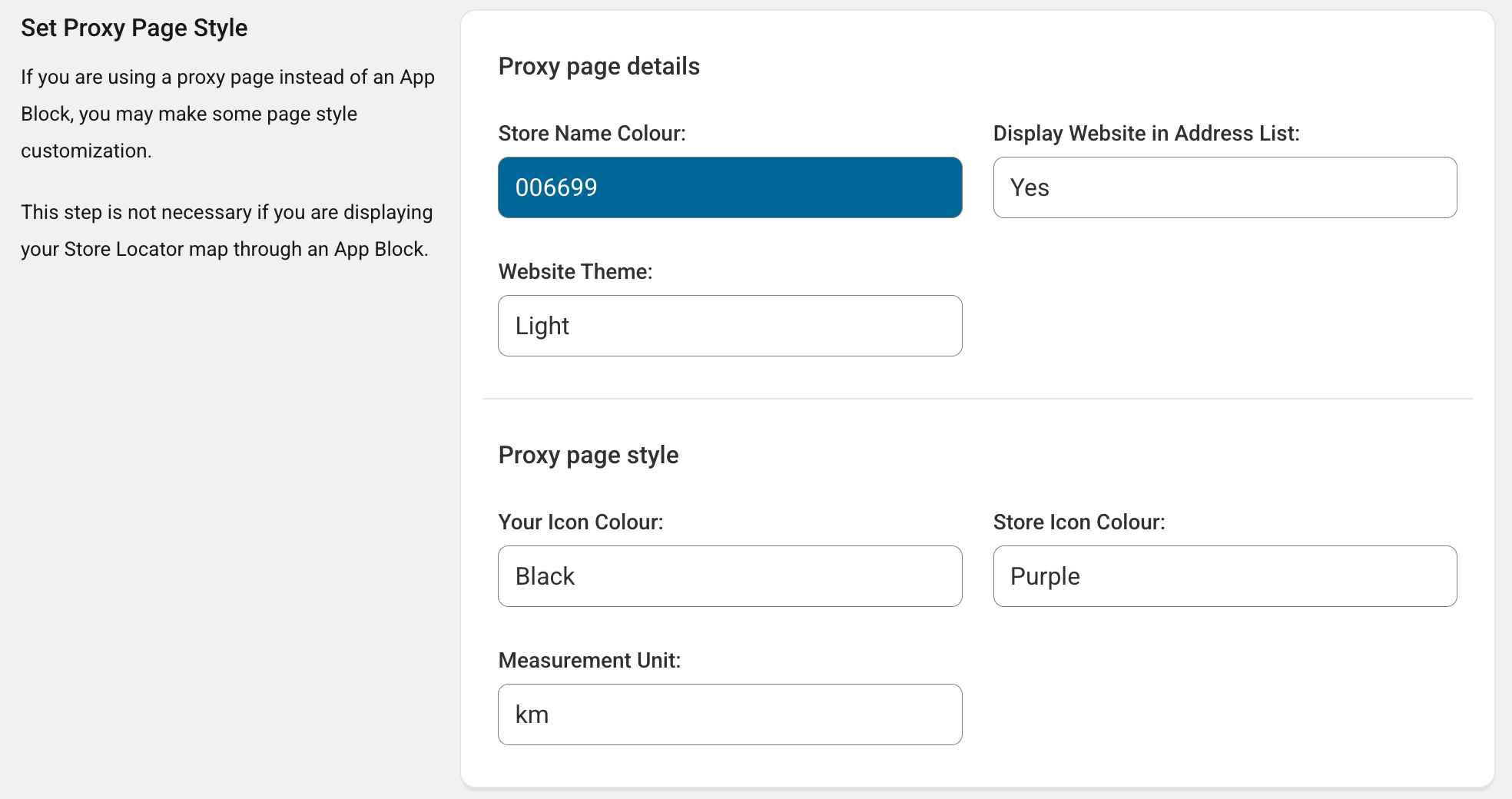
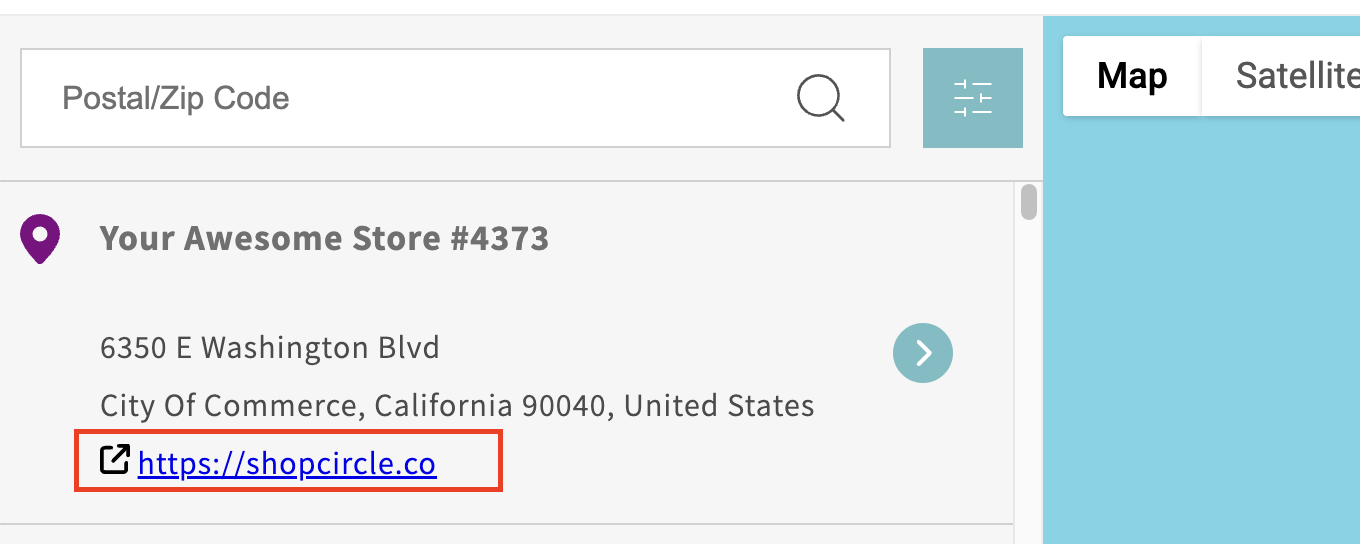
Display Website in Address List: Since you cannot add your website in the Address List via Information Formatting [link], you can do it here.
Important Note
Store Name Color (changes the color of location names, for example: Your Awesome Store #4373 in the previous screenshot) and Website Theme (changes the color of the frame around the map) can be adjusted for the Legacy Layout.
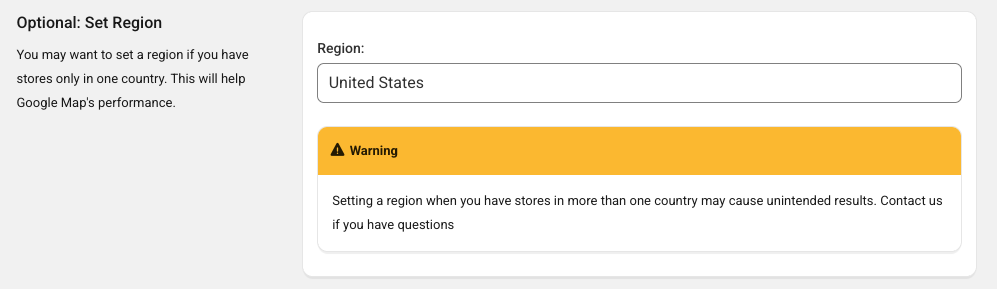
Set Region
Simply, this action will help Google Map's performance and enable your customers smoother search experience.
Recommended Action
Setting a region when you have stores in more than one country may cause unintended results. Reach out to our Support Staff if you have any obstacles.
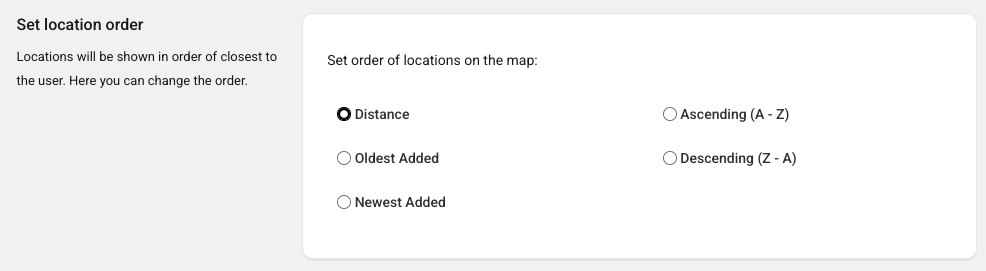
Set Location Order
Locations will be shown in order of closest to the user. Here you can change the order.
Contact Us
- Reach out to our Support Staff, or use our live chat if you have any obstacles.
- Schedule a call with an expert to help you set up or customize the app.
Was this article helpful?
That’s Great!
Thank you for your feedback
Sorry! We couldn't be helpful
Thank you for your feedback
Feedback sent
We appreciate your effort and will try to fix the article