Turn on AI Redirects and Easy Redirects fixes broken links for you in the background. This article shows how to set it up, what the AI Fallback does and how to approve the suggestions the AI isn't sure about.
ℹ️ Plan: Automatic AI Redirects are available on Pro+. On Pro, you get 15 AI recommendations a month in Unresolved 404s. See What is AI Redirects and how does it work?
Turn on AI Redirects
- In the app, go to Redirects → AI Redirects.
- Turn on the AI Redirects toggle.
- Under AI Confidence, choose how strict the AI should be: Flexible, Balanced (recommended) or High. See Understanding confidence levels.
- Decide whether to use the AI Fallback URL (see below).
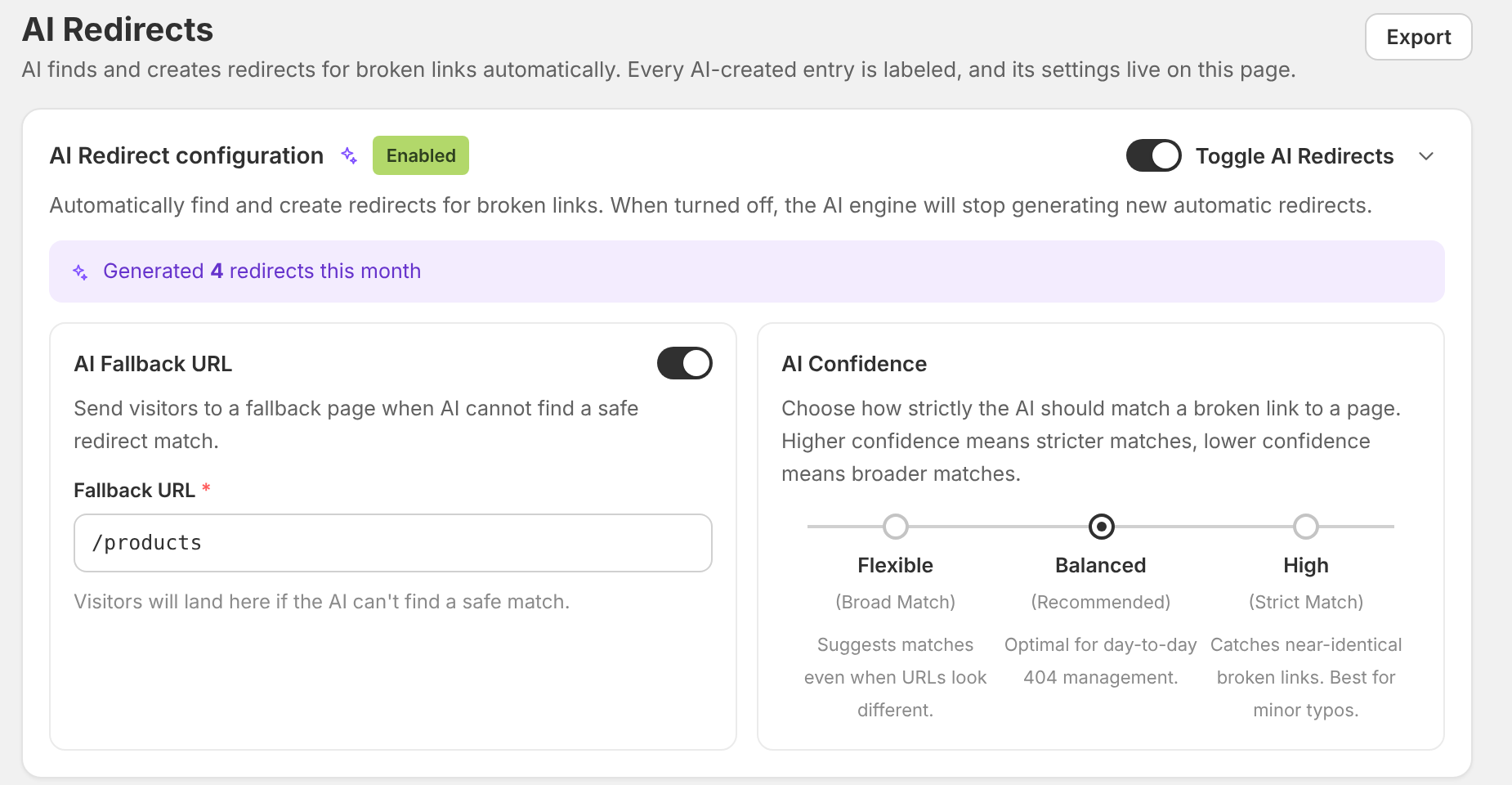
From now on, when a visitor hits a broken link, the AI looks for the best matching page. If the match meets your confidence level, a permanent redirect is created automatically. The card shows a running total, for example "Generated 12 redirects this month".
What happens when the AI isn't sure
If the best match scores below your confidence level, one of two things happens:
| AI Fallback is on | The visitor is sent to your Fallback URL. |
| AI Fallback is off | The suggestion waits in the Approval queue. Until you approve it, the broken link stays in Unresolved 404s. |
Set up the AI Fallback URL
- On the AI Redirects page, turn on the AI Fallback URL toggle.
- In Fallback URL, enter a relative path that starts with
/, for example/collections/allor/search. Don't paste a full URL with your domain.
⚠️ Pick a helpful page, not your homepage. When many unrelated broken links all land on the homepage, Google may treat them as "soft 404s".
⚠️ Use one catch-all, not two. AI Fallback and Easy 404 Fix do the same job. Turn on one of them, not both.
Approve suggestions
- On the AI Redirects page, open the Approval queue tab.
- Check the Suggested target and its Accuracy score.
- Click Approve to create the redirect, or the bin icon to discard the suggestion.
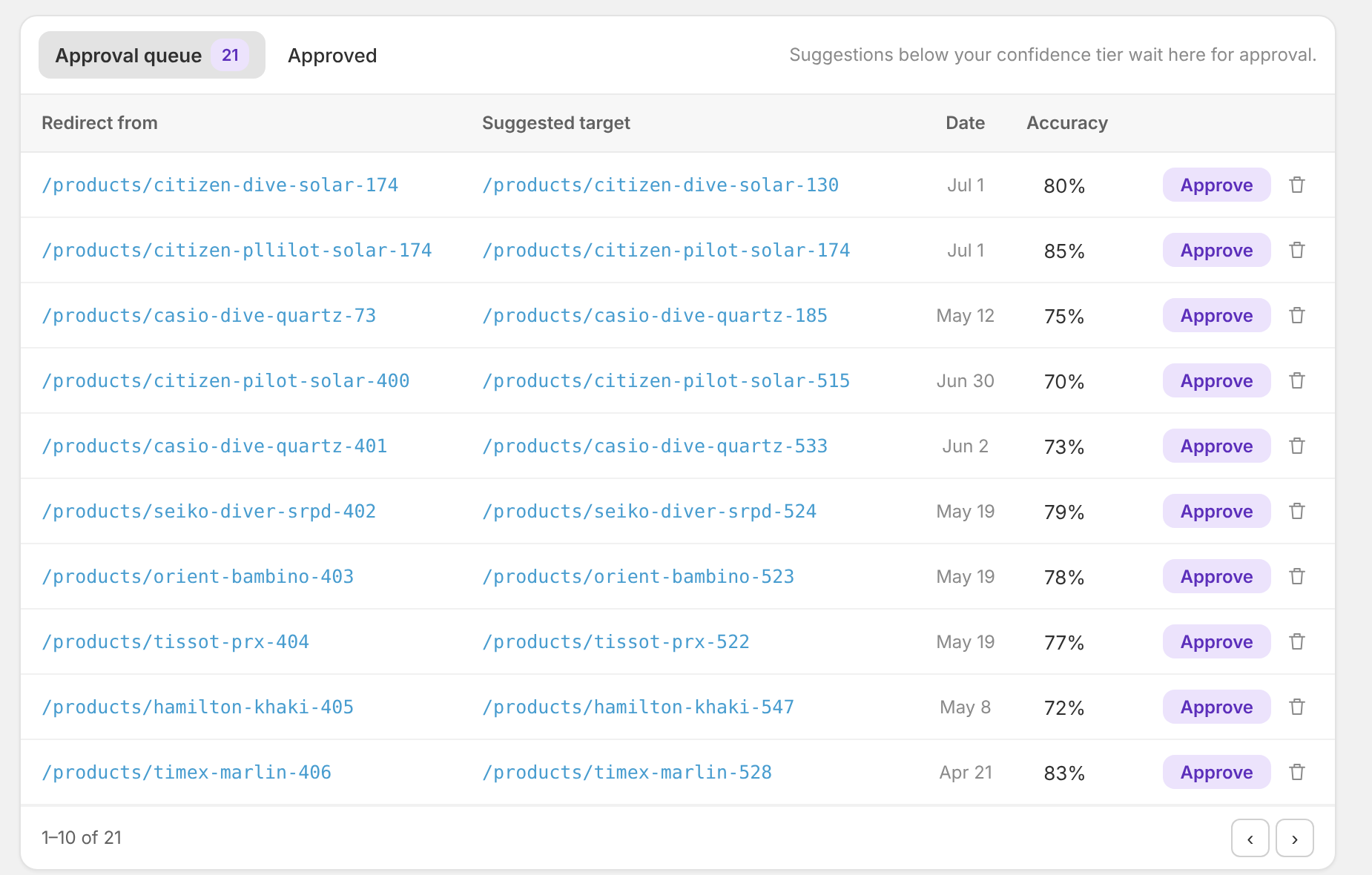
Approved and automatic redirects are listed on the Approved tab, and they're labelled as AI-created wherever they appear.
Fix your whole list at once
In Redirects → Unresolved 404s, click Fix all with AI. The AI works through your list in the background and emails you when it's done.
Good to know
- Your own rules win. 404 redirects and patterns you created always take priority over AI Redirects.
- AI fixes are permanent 301 redirects saved in Shopify, and they count towards Shopify's limit of 100,000 redirects (20,000,000 on Shopify Plus).
- You stay in control. You can edit or delete any AI-created redirect, and turn AI Redirects off at any time. Redirects that already exist keep working.
- Not seeing suggestions? See AI Redirects isn't suggesting redirects: what to check.
Still stuck? Contact our support team and we'll help you. You can also book a call with our Product Manager.
Was this article helpful?
That’s Great!
Thank you for your feedback
Sorry! We couldn't be helpful
Thank you for your feedback
Feedback sent
We appreciate your effort and will try to fix the article